| For questions specific to Phone Dialer Pro click ---> | |
| For questions specific to Excel Dialer Pro click ---> | |
| For questions specific to Dial Engine Pro click ---> | |
| For questions specific to Auto Dialer Pro click ---> |
*
What do I
need to use the program?
Having Windows is the major requirement.
Depending on the selected options you may need to have one or more of
the following:
- PC modem or PC voice modem
- Skype program
- VoIP service
- telephony board (Dialogic, CallUrl etc.)
- TAPI driver for Asterisk PBX server => read
this: How
to dial out when being on Asterisk PBX server
*
I
downloaded
it, but I am not sure how to get it to
dial
If you want to use your existing phone system in most situations
you will need a PC modem and connect your phone line to it.
If it is a company phone line and it is a digital line, in addition you
will need to use the digital to analog phone line converter.
When using magic jack, just connect it directly to PC modem (just treat
your magic jack as the regular phone line outlet).
*
Installing
software on Windows Server 2003/2008
Windows Server treats this software as an untrusted
application, shuts it down and creates Dr.Watson report.
To avoid that problem user has to set the option to allow DEP to execute the
application.
Note:
This option is presented automatically after rebooting the system.
*
Why program
needs to be re-installed after each restart of
Windows?
Some antivirus/antispam software deletes couple of dll
files required by the software to operate normally.
Those files are: msgphd.dll and msgpd.dll located in \System32
Windows folder.
You need to instruct the antivirus/antispam software to not delete those
files.
The antivirus/antispam software known to do that are:
- SuperAntiSpyware
Note:
Trend Micro Client/Server Security Agent is known to interfere during
program's installation. resulting in the failed installation.
*
I have
"Wrong Version Of Run-Time DLL" error. What should I do?
This error indicates, that you have the old, incompatible version of
msvbvm50.dll file in your computer.
You can download the corrected version from here:
msvbvm50.zip
After unzipping it copy this file into Windows\System32 folder or
Windows\System if you have Windows 98.
More info on that error can be found
here.
*
What is the
setup.log file and where to find it
Setup.log file is created during the installation process and
contains some setup information.
It is located in the same folder, the program was installed.
For example: c:\Program Files\<name of the program>\setup.log
*
How to
prevent
dialer from being loaded on Windows
startup?
In the
Tools>Options>General tab click on General Preferences and uncheck the box: "Load Phone Dialer Pro at Windows startup".
Note:
User has to be the administrator to change this option.
*
How to
call a local number without charging it to the calling card?
In the
Tools>Option>Dialing tab click on >Additional Dialing
Properties< button and check the box: "Disallow use of Calling Card for
local calls", as shown in the picture below:
back to the top
*
Modem
does not recognize busy signal.
Some
modems, specially older hardware models may not recognize busy signal when
being used in voice mode.
If you hear busy signal but your modem does not recognize it, in such situation uncheck the 'Voice' option in Options>Voice
tab.
Also, please read next below.
*
How to
synchronize displaying "Connected" message with the real
time dialing progress?
A properly detected busy signal is very
important for the determination of the Connected phone line state.
It is recommended to use the Detect Busy utility. See it in the Tools>Options>Hardware
tab.
If for some reason your device cannot detect busy (for example, your phone
company may provide voice mail instead of a busy signal), there are 2 methods you can use:
1.
Make a phone call and measure the time it takes to the first audible ring. Manually insert that
number into the Busy Detect option in the Tools>Options>Hardware tab and
click OK to save the options. The value should be between 8-13 seconds for
most modems.
2.
Find the .ini file located in:
Windows XP:
C:\Documents and Settings\<user name>\Application
Data\application name folder>\<application name><executable file
name>.ini
Windows Vista and Windows 7:
C:\Users\<user name>\AppData\Roaming\application name folder>\<application
name><executable file name>.ini
Open it in a word editor (Notepad, MsWord) and do the following:
- find Busy Detect=0 and change it to Busy Detect=1
- find Busy Delay Timer and change it to Busy Delay
Timer=13
back to the top
* Options: storing, editing and default
settings
Storing:
Options are stored in:
Windows XP:
C:\Documents and Settings\<user name>\Application
Data\application name folder>\<application name><executable file
name>.ini
Windows Vista and Windows 7:
C:\Users\<user name>\AppData\Roaming\application name folder>\<application
name><executable file name>.ini
Note:
\Application Data folder is a hidden folder. Use Windows
Explorer>Tools>Folder Options to unhide it.
Editing:
Open ini file using a word editor
(Notepad, MsWord) and edit the entries you are interested in.
Note:
Do not introduce any additional characters: just replace existing digit
with the new one.
When editing a text make sure the spelling (path) is correct.
Default settings:
To set all options to default values use one of these
methods:
* run
application with /default suffix: <path><executable name> /default
or
* use Set Defaults button in Options window.
back to the top
*
How to set
dialer as the default dialer in
Windows and accept dialing requests from other applications?
Dialer can
make calls on behalf of other applications. It will accept dialing requests from
those applications, which use Microsoft's Tapi Assisted Telephony standard for Windows
such as personal managers (PIM's), address books, databases, spreadsheets and word
processors (some macro and scripting may be required).
To enable, check "Accept dialing numbers from other applications"
from Options>Dialing tab.
Dialer does not need to be open (active) when being accessed by another
application.
All dialing requests are queued and executed sequentially after each completed call.
back to the top
*
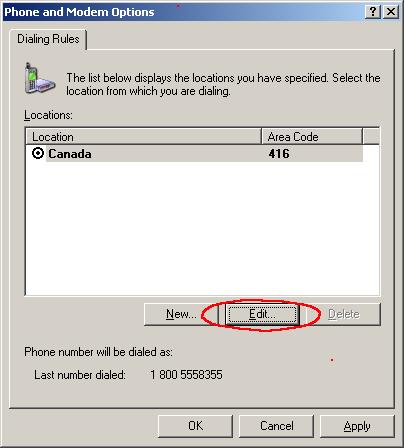
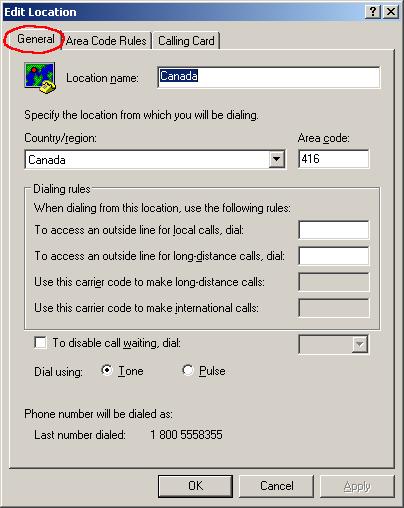
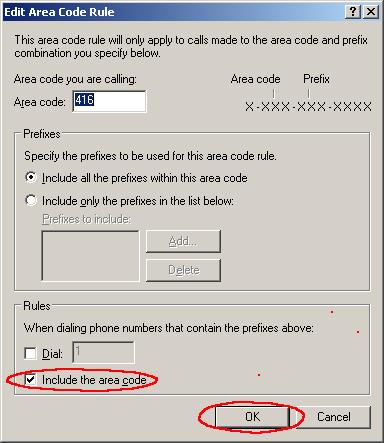
How
to set dialer to dial or not to dial "1" for numbers from the specified area
codes? see Figure 6
In the >Tools > Dialing
Properties select Area Code Rules and fill the appropriate boxes, as shown
below:
Figure 6. Dialing Properties
 |
 |
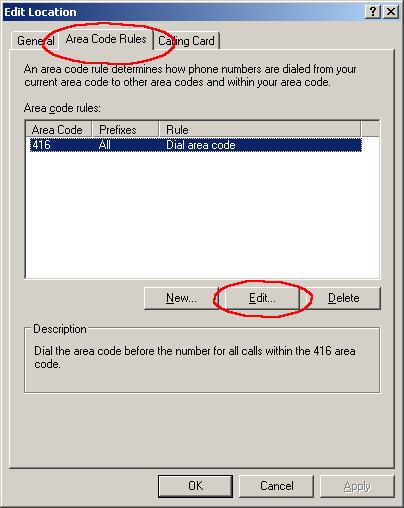 If you do not have any entry to edit, you need to click on New, create the new entry and then click on Edit |
 |
Users may encounter a problem when the same area
code is used with a local call or a long distance call. For instance: the local area
number is "905" but to dial outside the local zone the area number must be
prefixed with "1", so the dial number will start with "1 905".
In such case user should set in Dialing Properties: "Not to dial '1' for selected
area codes" and insert those area codes in the appropriate field.
Next, when programming the Speed Dial button for the outside area call (phone number
should begin with "1") user should place the check mark in "Ignore Dialing
Properties" box, which will make PDP to dial a "1" for that particular
Speed Dial button.
back to the top
*
Why
dialer does not dial the local area code?
see Figure 6 above
Phone dialer is smart enough to recognize whether the dialed number is a local one or not. If
it a local call and the number includes the area code but the checkbox in Dialing
Properties>Area Code Rules: "Always dial the area code" (Win98) or
"Include the area code" (Win2000/XP/Vista) is not checked, dialer will remove
that area code digits from the calling number. On the other hand, when the dialing number
does not include local area code but that option is checked, dialer will
automatically insert local area code number. see Figure
6 above.
Users with Windows 98 and higher should have that option selected. Windows 95 users do not
have that option available and to avoid that problem should select: "Ignore Dialing
Properties" inside Speed Dial Edit window and manually include area code number.
back to the top
*
How to set
phone dialer to include area
code when dialing local number? see Figure 6
above
Windows Vista/XP/
2000 users should checkbox: "Include the area code" in
Dialing Properties>selected Location>Edit>Area Code Rules
Windows 98/98SE/ME
users should checkbox: "Always dial area code" in Dialing Properties>Area
Code Rules;
Windows 95 users are out of luck and should select "Ignore Dialing Properties"
and manually add area code.
back to the top
*
Simple VB script sample how to access PDP using Tapi Assisted
Telephony.
In visual basic
declare:
Declare Function tapiRequestMakeCall Lib "TAPI32.DLL" (ByVal lpszDestAddress As
String, ByVal lpszAppName as String, ByVal lpszCalledParty as String, ByVal lpszComment as
String) As Long
Then in your code when it is ready to dial insert:
Dim PhoneNumber as String
Dim rtn as Long
rtn =
tapiRequestMakeCall(PhoneNumber,"","","")
if rtn <> 0 then there is an error and you may to provide some error handling.
PhoneNumber is of course the dialing string and must be enclosed in "" :
PhoneNumber = "555 234 9876"
.
back to the top
*
Simple
VB code how to invoke dialer and make a phone call.
In visual basic
declare:
Declare Function ShellExecute Lib "shell32.dll" Alias "ShellExecuteA" (ByVal
hwnd As Long, ByVal lpOperation As String, ByVal lpFile As String, ByVal
lpParameters As String, ByVal lpDirectory As String, ByVal nShowCmd As Long)
As Long
Then in your code when it is ready to dial insert:
Dim lpString as String
Dim rtn as Long
lpString = "C:\Program
Files\Phone Dialer Pro\phonepro.exe"
rtn = ShellExecute(0&, "Open", lpString, "4162340553", "c:\", 7&)
.
back to the top
*
How to check what is the dialer
version No and revision No?
The easiest way:
On dialer's interface click on Help menu and select 'Ask question'.
That will open the new email message with the program's version & revision
number inserted into subject line.
Other methods:
In the
application installation folder locate the file register.txt or
click on Register menu and check the document's header.
Register (or registration form) menu is available from the dialer's Help
pull-down menus
or from computer's Start>Programs><dialer name> displayed options.
back to the top
*
What is a
Voice Modem?
Most modems can be classified with these characteristics:
Data
Data/fax
Data/fax/voice
Data/fax/voice/speakerphone
A voice modem is a modem that is capable of
playing and recording audio over a telephone line. While almost all modems are data
and fax capable, more and more also have voice capabilities.
Most of
the PC systems (and laptops) sold
by Dell, Hewlett Packard, Compaq come with data or data/fax modems,
NOT voice modems.
back to the top
*
Half-duplex versus
full-duplex modems
Most of the voice modems
available on the market are half duplex modems only.
It means that you cannot speak and listen simultaneously.
There are 2 kinds of full duplex modems:
-
Speakerphone modems, which come with the outlets for the mic and speakers.
Usually, these are internal, PCI voice modems. These modems are good for use as a speakerphone but for the playback or recording purposes these modems can be used only as a half-duplex modems: it is possible to do playback or voice recording, but not both operations simultaneously. -
Truly full duplex TAPI devices:
- Way2Call ---> single line and multiline devices internal (PCI) and external (USB)
- CallUrl ---> multiline devices internal (PCI)
- Brooktrout ---> multiline devices internal (PCI)
- Eicon analog ---> multiline devices internal (PCI)
- NMS Communication ---> multiline devices internal (PCI)
Note:
There is only one full duplex single line device:: Way2call Hi-Phone Desktop.
See: modem recommendations.
Note:
Full duplex modem is not necessary when you want to play a message or record
a phone conversation, however you need it when you want to use headphones
instead of a phone's handset. Please read this:
speakerphone
For budget conscious individuals wanted to use headphones there is a way
around. Instead of full duplex modem, use the telephone, which comes
with the jacks for microphone and speakers (headphones). It is possible to
find such telephone for $30 or less.
*
What is a
TAPI compliant modem?
TAPI stands for Telephony Application Programming Interface
and is a programming standard provided by Microsoft within their Windows operating
system. It allows software developers to produce telephony software that will work
with any modem, as long as that modem is TAPI-compliant.
For a modem to work with Windows TAPI, the modem must have
voice drivers and sound devices. The voice drivers are interfaced with Win 9x/Me
through Unimodem/V(and Win 2000/XP/Vista through Unimodem 5), Windows' universal modem voice
drivers. Audio devices (or Wave Devices) for the voice modem are usually provided
by the modem manufacturer.
back to the top
*
How to check if the system has a modem
WAVE driver installed?
If your modem supports VOICE, then a
modem wave driver must be listed in the Windows Device Driver Manager.
Windows 2000/XP/Vista
|
Windows 7
|
|
|
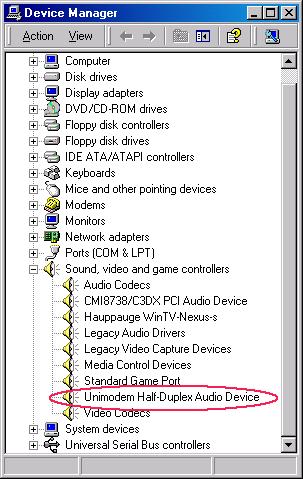
*
My modem supports VOICE but I can't find the "Wave
Device"("Audio Device") installed
Windows 2000/XP/Vista comes with a variety of
"generic" modem drivers - including modems based upon all the popular chipsets.
In many cases, adding, changing, or removing a modem is simple: plug and play. But, it
doesn't always work that way.
In most cases, Windows 2000/XP/Vista recognizes your
Data/Voice/Fax modem as Data modem only and install the "generic" modem driver
which shipped with Windows itself. So you may not see the "Wave Device"("Audio Device") driver for modem listed in the Device Manager.
After that you can only dial up to the internet but can not record your phone calls with
your Modem at all.
If you are sure your modem supports VOICE, please Update
or Reinstall the correct modem driver.
back to the top
*
How to
update the modem
driver?
1. Find the correct modem driver: CD-Rom ships with
your modem or find a XP or Win2k-compatible driver from your modem
vendor (or
internet download sites).
2. Open the "Device Manager" as
showed below.
3. Expand the Modems tab by clicking on the +, and
your modem should be listed. Right click the modem name and a menu pops up.
4. Choose the Update Driver... (Win 9x) or Properties>Driver>Update
Driver (Windows 2000/XP/Vista) and use the 'Have Disk' option to point
Windows to a compatible driver you've downloaded
(or in the cdrom)
back to the top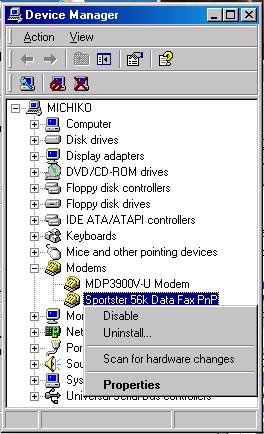
*
How to reinstall the modem
driver?
1. Find the correct modem driver: CD-Rom ships with
your modem or find a XP or Win2k-compatible driver from your modem vendor(or
internet download sites)
2. Open the "Device Manager" as
showed above
3. Expand the Modems tab by clicking on the +, and
your modem should be listed. Right click the modem name and a menu pops up
4. You can try Uninstall and then try the Add
Hardware wizard (Scan for hardware changes) - use the
' Have Disk' option to point to a compatible driver
back to the top
*
Does my modem
support Caller
ID?
Generally we use HyperTerminal
to test our modem if it supports Caller ID.
First make sure you can see the Caller ID information from
a normal telephone LED displayer.
Then do the following:
-
Select "HyperTerminal" by navigating through the Start button to "Programs," then "Accessories," then "HyperTerminal"
-
Double click on "hyperterm" or "hyperterm.exe"
-
Name the new connection "test," and select OK
-
Change the "Connect using" to Direct to COM X, where X is the COM port used by the modem
-
Click on OK on the screen for "Port Settings", the click OK
-
Type the string ATZ to initalize the modem (OK should appear on the screen)
-
Enter the Caller ID setup string to be tested: AT+VCID=1 for most modems (see notes below)
-
If OK results, continue; If ERROR results the modem may not support Caller ID; try a different setup string
-
Have someone call you and watch the terminal screen
-
If Caller ID is working, you will see the word RING, followed by one or more additional data lines. The word RING will then continue to appear for each incoming ring.
-
If Caller ID is not working, you will only see the word RING for each incoming ring. If this is the case try another Caller ID setup string and go back to step 2.
Notes:
For most modems, the string AT+VCID=1 will enable Caller ID. On some voice based modems the string is AT#CLS=8#CID=1. Look in the user’s manual for your modem to see if any setup string is referenced or mentioned. Other common setup strings are:-
AT#CID=1
-
AT%CCID=1
-
AT%CCID=2
-
AT#CID=2
-
AT#CC1
-
AT*ID1
-
*
What is
Call
Display PLUS service?
If you subscribe to Call Display PLUS, you have the option of blocking
anonymous calls. Just dial *77 and your telephone will not ring for
anonymous calls. You can de-activate this service at any time by pressing
*87.
back to the top
*
What are these special dialing
options: "$", "@", "W" ?
These are
modem's special dialing options:
-wait-for-billing-tone ($)
-wait-for-quiet (@)
-wait-for-dial tone (W)
Wait-for-billing-tone can be used when dialing with a Calling Card.
Suppose a person with a calling card wants to make a long distance call. The normal
process is to dial a prefix code, followed by the area code and a phone number. The caller
then waits to hear a "bong" on the line (the billing tone). After hearing the
bong, the caller enters the calling card number.
The following example shows how to automate such dialing sequence:
1 905 777 4321 $ 1234567890987654321
Wait-for-quiet tells the modem to detect "quiet" on the line,
which usually means no tones (such as ringing or busy tones and no other sounds (such as
human voices). A modem that supports wait-for-quiet is useful for making calls to
automated phone systems, such as voicemail systems or automated banking systems.
The following example shows how to use wait-for-quiet:
777 4321 @ 1,,1,,3,,2,6578768934210564,0500,72779673#
Another dial option is wait-for-dialtone. If a modem supports this
option, it pauses after a W character in the dial string until it detects
a dial tone. Once it detects a dial tone, it dials any remaining digits after the W
character. This option is especially useful in hotels or large companies, where it is
usually necessary to dial a special prefix digit, such as an 8 or 9, to reach an outside
line.
The following example uses wait-for-dialtone:
9 W (905) 777 4321
In the wait-for-quiet example, both the @ and the comma
are used for pauses. Typically, user should use the @ when unsure of the
length of the pause or when the length of the pause can change and use commas when the
length of the pause is consistent and rarely changes.
back to the top
*
How to
connect automatically to voice mail ?
Use ',' (comma) as the separator
between groups of digits.
1 comma is about equal to 2 seconds pause.
Example:
template: <phone number>,,,<account number>,,<password>
real:
5552340553,,,6789,,83960
Of course you need to adjust numbers of commas to suit your situation.
*
How to increase the default time
delay for "," ?
The modem's default
time delay for "," is approx. 2 seconds depending on modem's
model.
How to change this value user should consult the modem's manual, however in most of
the cases the following init string should work:
ATS8= # where # is the number of seconds required
This string should be entered in the Modem's >Properties >extra initialization
command field accessible from Tools>Options>Hardware menu.
back to the top
*
No Dialtone
There can be several causes for
the modem not detecting a dialtone.
When in office environment the most likely cause is plugging a
digital phone line into computer's analog modem.
solution: commercial digital to analog phone line converters.
Other causes:
- plugging phone line into modem's Phone jack instead of Line jack
- bad phone cable
- bad modem
back to the top
*
Dialing
phone numbers over 79 digits long
The modem can dial phone
numbers up to 79 digits long.
This software allows to extend twice that limit to 158 characters for
all of the modems.
Some modems like for example Creative Labs Modem Blaster can be used to
extend that limit even further. I was able to dial over 1000 characters when
using Modem Blaster.
Note
Dialing will be done in data mode. It means, that if the used modem has a
speakerphone capability, that function will be disabled.
There may be a noticeable pause after the first 79 digits are processed by
the modem. This is due to TAPI limitation, which does not
'notice' when modem finishes processing the numbers. Dialer tries to
'guess' that moment, but depending on modem that pause can be quite
significant.
If you want to fine tune dialing, please send
Tapilog.txt log file and
the modem's log
to
back to the top
*
How to make dialer
automatically
hang up a line after connecting a call?
Select the
options: "Accept dialing numbers from other applications" and
"Drop
line when the call connected" from Options>Dialing tab, as shown on Figure 3. When done, you may exit dialer or keep it active. The next
step is to use another application to send dialing request. That can be your own code, see
FAQ #8 or another Assisted Telephony application as for example WAB
(Windows Address Book).
back to the top
*
How do I configure the software to dial the
same number at the same time everyday?
Use the Windows Scheduler to
do that task.
Start>Control Panel>Scheduled Tasks and click on Add Scheduled Task.
-
Select dialer from the list.
-
Select your times.
-
Before finishing, select the "Open advanced properties for this task when I click Finish" option.
-
In the Run field, append a space and the phone number you want to dial.
For example: C:\PROGRA~1\PHONED~1\phonepro.exe 4162340553 -
Click OK
Note:
It is advisable to check if the dialer's task is set properly.
To check it:
- copy the whole line from Run field
- click on Windows>Start>Run
- paste the line in the Open field
- click OK
If everything is fine, the dialer should start dialing.
back to the top
*
Monitoring/Answering
the incoming call and/or executing a specified program.
Not
every modem supports answering incoming phone call when it is used in the Voice
mode. If your purpose is to remotely execution of the external program
it can be still done with the Voice mode disabled and Monitor
Lines enabled option.
Note:
Executing external program does not terminate the existing call. In
General tab you need to enable 'Drop line after...' option and specify the
duration of the call considering time to execute the program and giving
the caller enough time to hang-up the call. In the case when the caller
does not hang-up before the 'Drop line' option is invoked the multiple
instances of the external program will be launched.
back to the top
*
How to
dial phone numbers
selected in any document or browser page?
In Options > Dialing tab, the option:
"Enable 'Copy' as a Dial command" must be checked.
Dialer must be active (it's icon visible in Systray).
Right click on the selected (highlighted) phone number in any document, browser page or
another window and from the pop-up menu click on "Copy". Dialing will start
immediately.
To dial from the Internet Explorer web page, there is another option
available:
Add DIAL command to IE context menu
This option will create a >>> DIAL <<< command in the Internet Explorer
context menu (right-click).
Mouse right-click on a phone number in a webpage and select DIAL from the
menu to initiate dialing that number.
Note
· >>>DIAL<<< menu will be added to the
newly opened IE web pages AFTER this option has been saved.
Closing the dialer will remove this additional menu from IE browser.
*
SysTray icon
indicators:
Both
dialers can operate in 3 modes: Regular, Monitoring and Answering.
Dialer's SysTray icon indicates what mode dialer is in:
|
Mode |
PDP |
DEP |
ADP |
|
Regular: |
|
|
|
|
Monitoring: |
|
|
|
|
Answering: |
|
|
|


*
Acceptable csv file
formats:
|
1 |
Each record contains a name and a phone number enclosed in quotation mark (") and separated by the comma (,) |
|
"Ellen Eliot","(800) 328-8171 x 299" |
|
|
When alpha sorting, Mr. or Ms prefix will be ignored |
|
|
"Mr. Larry O’Shinsky ","805-636-8174" |
|
|
2 |
Each record contains a name and phone number separated by the comma (,) |
| Hurley Scott,805-466-0289 Dahl Brenden,818-343-0708 Ferrell Georgia,310-453-8817 Galper Steve,310-829-4566 Anderson Judy,310-453-8815 |
|
|
3 |
Each record contains more then 2 fields: csv file should include the header indicating the position of Name and ph.number as shown below (no quotation marks) |
| Name,,Phone, Barbara,Mobile,5552340553,SC Barbara, HOME,5552340553,NC Adam,Work,5552340553,DC David, Work,5552340553,Texas Langford, Home,5552340553,California Eva Sue, Cell,5552340553,New York Jim, Cell,5552340553,Utah Amy, Cell,5552340553,Florida Frank, Home,5552340553,Florida Jim, Home,5552340553,Georgia |
|
|
4 |
Each record contains more then 2 fields: csv file should include the header indicating the position of Name and ph.number as shown below (quotation marks) |
| "Name","","Phone" "Barbara","Mobile","555,2340553" "Barbara","HOME","555,2340553" "Adam","Work","555,2340553" "David","Work","555,2340553" "Langford","Home","555,2340553" "Eva Sue","Cell","555,2340553" "Jim","Cell","555,2340553" "Amy","Cell","555,2340553" "Frank","Home","555,2340553" "Jim","Home","555,2340553" |
|
Important:
When the phone numbers to be imported contain commas (comma inside phone number
indicates 2 seconds pause) then the recommended csv format should have all
fields enclosed in quotation marks, separated by the comma as shown above in
example 1 or example 4.
back to the top
*
Why
some options revert to their original values?
The options:
'-DIAL- as mouse right click pop-up menu for Internet Explorer'
and
'Load .... at Windows startup'
use Windows registry to store their value.
To set/change their values the user's administrative privileges are
required.
Additionally, when using Windows Vista the User Account Control (UAC)
must be turned OFF (Start>Control Panel>User Accounts).
back to the top
*
I can't seem to get
this software to work! It looks as if it's dialing out but
nothing
happens.
One
of the most often causes is the wrong or duplicate modem's driver installed.
First check should be done by selecting the proper
modem's driver in Tools>Options>Hardware tab.
Pay attention to the same device having #2, #3 in it's
title.
If there is such one or more devices it means you have
the multiple instances of the same modem installed, and that is confusing
Windows.
The proper procedure will be to click on 'System Modems' in
Tools>Options>Hardware tab and removing all not necessary or
obsolete drivers. If you are not sure which driver to remove, click on
Properties>Diagnostics>Query Modem and run the test on each modem.
The modem's driver for which test is negative, can be safely removed from
Windows.
If you have the original installation disk for your modem the best way
is to remove all listed modems and to install your modem's driver again.
back to the top
* Speakerphone:
how to use it and troubleshoot
Speakerphone in hardware mode:
In Tools > Options > Voice tab, the option:
"Voice" must be selected.
Speaker and microphone must be connected directly to the modem's built-in jacks.
Such configuration will work in full-duplex mode.
To turn off dialing tones see: switching
off dialing tones (when using as a speakerphone in hard mode
Speakerphone in soft mode:
In Tools > Options > Voice tab, the option:
"Speakerphone..." must be selected.
Speaker and microphone are connected to the computer's soundcard.
Make a phone call.
When connected, DO NOT pickup phone receiver but use computer's microphone and
speakers.
DO NOT click OK button until you finish your call.
Clicking on OK button will disconnect the call or when the telephone's handset
is lifted up BEFORE that, the phone call will be transferred from
speakerphone mode to the handset.
Also, it is possible to make the line disconnection automatic.
In Tools>Options>Dialing tab select 'Drop connected call after....' and select how many minutes you want to be online.
Most of the modems used in soft mode are half duplex. It means you can use or
microphone or speakers but not both simultaneously.
Troubleshooting the speakerphone in soft mode:
1. Make sure that in Tools > Options > Voice tab the option:
"Speakerphone..." is selected.
2. Make sure that computer's microphone and speakers are enabled (not muted)
by checking the mixer options available by double-clicking on the volume control
icon in Systray (bottom, right corner of your screen). If the volume
control is not visible in the SysTray, then go to the Control Panel, click on
the Sounds icon, and check the box which says Show Volume Control on the
Taskbar.
3. Make the following test:
. In Windows>Control Panel find:
Windows XP/Vista ---> Sounds,
Speech and Audio Devices ---> Sounds and Audio Devices ---> Audio tab
Windows 2000 ---> Sounds and Multimedia or
Windows 98 --->
Multimedia
and check if you can see your modem's wave driver as
one of playback and recording devices.
Usually the modem's wave driver will look like this:
Modem #0 Line Playback
4. When in doubt whether the modem has speakerphone capabilities do the
following:
(1).
---> click here
to download Phone Dialer Pro test file
(<500 kB)
---> click here
to download Auto
Dialer Pro test file (<500 kB)
---> click
here
to download Excel
Dialer Pro test file (<500 kB)
---> click here
to download Dial
Engine Pro test file (<500 kB)
(2). Using test file make a phone call and upon connection try to use
computer's microphone and speakers.
(3). Disconnect line by clicking the OK button.
(4). Close dialer.
(5). After closing dialer there will be a log file:
Tapi.txt created in the
folder, the test file was run from.
(6). Send that log file to the
back to the top
*Switching
off dialing tones (when using as a speakerphone in hard mode)
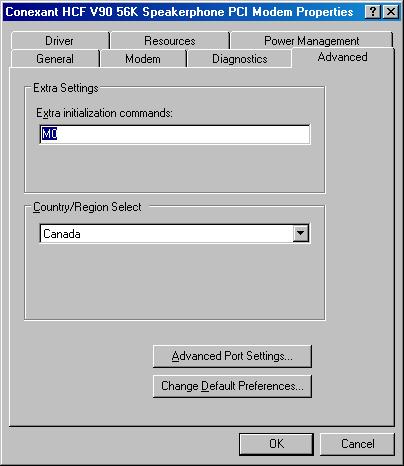
Some modems have very loud dialing tones. It is possible
to turn them off by setting the extra initializing string in modem's
properties to the value of M0. See the picture below:
|
|
To get to this screen
click on Options>Hardware tab, then click on 'Modems, Add,
Remove...' button. In Phone and Modems Options window
select your modem, click on Properties and then Advanced
tab. |
*Laptop
modems
Most laptop modems are not the
voice modems, and even when few of them
are they are half-duplex only.
It means you can use or
microphone or speakers but not both simultaneously.
To play (or record) wave file the best (and the cheapest) solution is to use an
external USB voice modem.
back to the top
*
Voice_modems recommendation: Modem's model back to the top
*
How to dial out when being on Asterisk PBX
server There are drivers available on Internet to
allow dialing out when using Asterisk PBX Server, such as: xtelsio TAPI for Asterisk: AstTapi
*
Using
the test file to diagnose hardware or
software problems Conference call Video call
*skype
error messages "Please install Skype Extras. ERROR: Skype4COM.dll not found!" "Dialer is not
attached to Skype.", "Dialer cannot attach to Skype." or "Dialer does
not have Skype permission." "Unrecognized
identity" or "Skype is not
running"
*Voice
over Internet (VoIP) dialer Using VoIP provider such as Vonage,
Primus,
Rogers Home Phone and others whose services come with the hardware
adapter simulating a phone line (VoIP gateway): Using Skype: Using other VoIP service providers:
*Error
messages "The selected line is in use or it is not connected." "Unable to make a call." "Unable to make a call: Resources unavailable." "Connection is terminated by the other side." When you are sure that the line is not in use,
it is connected and the other side did not terminated the call
you may try: Reinstalling the modem's driver. Updating the modem's driver. Change the modem
*
Developers corner
hWnd
NOTE:
If you are not sure which modem is good for your application please ask me.
Personally I am using
Way2call Hi-Phone Desktop and I am very satisfied with
its performance.
I have also tried
AOpen FM56-P (H) Speakerphone PCI
and I recommend it for budget conscious users.
Users
Remarks
Author
recommendations
Way2call Hi-Phone Desktop
very good
full duplex device
good voice quality
all
modems listed below are half-duplex only:
you can use mic or speakers but not both simultaneously
Creative Labs Modem Blaster
V.92 PCI
???
half duplex
Creative Labs Modem Blaster
V.92 Serial External
???
half duplex
Creative Labs Modem Blaster
V.92 USB External
???
half duplex
Creative Labs Modem Blaster
V.92
PCMCIA Notebook ???
half duplex
Intel(R) 537EP V9x DF PCI
(included in some Dell computers)it does not recognize busy signal (TAPI)
not a voice modem
AOpen FM56-P (H) Speakerphone PCI
working good
half duplex
APACHE
A56SP-HCF
internal modem?
half duplex
APACHE
Ae56SP-RA
external modem?
half duplex
APACHE
V92SP-USB
external modem?
half duplex
CNET Singlepoint
56KV90 PCMIA, Full Duplex?
half duplex
Conexent HSF V92 56K
RTAD Speakerphone PCI Modemworking good
half duplex
56K PCI Voice Modem
SF-1156IV+ R?
half duplex
Sevel SoftK56 Data,Fax,Voice,Speakerphone
line not released after answering call
half duplex
*
How to check that modem has ability to send / receive
DTMF tones?
Most of the
voice modems have that functionality.
If you want to make sure that your modem is capable of sending and
receiving DTMF tones:
1.
Use the test file and and send
TapiLog.txt log file to
author.
or
2.
Using this dialer make a phone call to the voice mail (for example
your bank) and using dialer's dialpad try to navigate the voice
mail.
If you can, your modem is capable.
back to the top
http://www.xtelsio.com/en/products/ast_tsp/tapi_for_asterisk.htm
Download
xtelsio TAPI for Asterisk:

AstTapi, an open source Asterisk Tapi
driver for windows.
This allows to dial out contacts directly from the application using an
Asterisk PBX Server.
Your Asterisk connected phone will ring, once you answer it Asterisk
will place a call and connect you to the previously dialed number.
Download AstTapi driver:
Download manual:
1.
to download the test
file:
Phone Dialer Pro click --->
here
Excel Dialer Pro
click --->
here
Auto Dialer Pro click --->
here
Dial Engine Pro click --->
here
2. Run it and use it the same way you were using the original file,
until the problem (error) appears.
3. Close program.
4. Find
TapiLog.txt log file in the same folder the test file
was run from.
5. Send that file to
.
Please make sure to add
comments saying what you are doing externally and where you think the problem
is.
Note 1:
When the error is a 'run-time' type error it causes the premature program
termination and TapiLog.txt log file will not be generated.
In that case run the test file with /tapilog suffix (<path><filename>_test.exe
/tapilog) and the second diagnostic window will open. Just save it's content and
send it to
.
Note 2:
Very often the problem is not related to the software but to the
modem used for dialing. In Windows folder please find the log created by the
modem. The file name should look like this: ModemLog_<your modem name>.txt
for example: ModemLog_Creative Modem Blaster V.92 USB
DE5671-1.txt
and send that log together with TapiLog.txt to
.
back to the top
*
Installing
external (USB) modem
Installing external (USB) modem is very easy and it does not require
opening your computer.
If this is the first installation, please skip (1) and (2) below, but if you
have already installed it and the modem does not work please follow all these
steps:
(1). Remove previous (unsuccessful) installation.
(A) Open
Control Panel and click on Add/Remove Programs
Locate the software
title, which was installed with the modem and click Change/Remove.
Follow the screen
but do not restart computer yet.
(B) In Control Panel click on
Sounds and
Audio Devices>Hardware tab.
Locate
Unimodem
Half-Duplex Audio Device. Double click on it and in Driver tab click
Uninstall.
Follow the screen
but do not restart computer yet.
(C) In Control Panel click on
Phone and Modem
Options>Modems tab. Select your modem and click Remove button.
Follow the screen
but do not restart computer yet.
(2). Unplug the modem and restart your computer.
(3). Start you computer.
DO NOT plug in your modem yet.
(A). In Windows, insert installation CD disk. The
installation should start automatically.
(B). Select 'Install software', then select
'Drivers' then click OK.
You
will see "Installation in progress" window for a few minutes.
Skip (cancel) any other software installation, like for example Net Watch
Watch video (I have not found a way to skip that)
(4). Restart computer
(5). Now, you can plug in your modem at any time you need it.
(6). To test your modem:
(A). In
Control Panel click on Phone and Modem
Options>Modems tab. Select your modem and click Properties.
(B). Select
Diagnostics tab.
(C). Click on
Query Modem button.
Note:
Initially, the modem's wave drivers looks like that:
Modem #0 Line Playback and Modem #0 Line Record
Reinstalling a voice modem will cause increase numbering of modem's wave driver:
#0 will become #1, #2 and so on.
That does not cause any problems with proper modem's operation.
If you would like to reset that number back to #0 and you know how to edit
registry, below is the location of the key holding that number:
HKEY_LOCAL_MACHINE\SOFTWARE\Microsoft\Windows\CurrentVersion\Unimodem and the
key name is:
NextWaveDriverInstance.
back to the top
*
Using
Dialogic boards
To use Dialogic cards with PRO family TAPI drivers and TAPI
wave drivers must be installed.
In Windows Control Panel>Add/Remove
Hardware>Add/Troubleshoot a device>Add a new device
select 'No, I want to select the hardware from a list'.
Next:
- select Hardware Type: Sound, video and game controllers
- click on 'Have disk'
- navigate to 'C:\Program Files\Dialogic\Lib'
- click on 'oemsetup.inf' file and open it
- you should see listed 'Dialogic Wave Driver 1.x'
- click 2x Next button and respond 'YES' to the digital signature message
(if needed point to 'DLGWAVE.DLL' in the 'C:\Program
Files\Dialogic\LIB' directory
- Number of Channels must be greater than 0.
Dialogic installation guide. ===>
Click
here
Dialogic System Release 5.1.1 drivers ===>
Click
here
Dialogic System Release 5.1.1 Service Pack1 ===>
Click
here
back to the top
*Using
Skype line
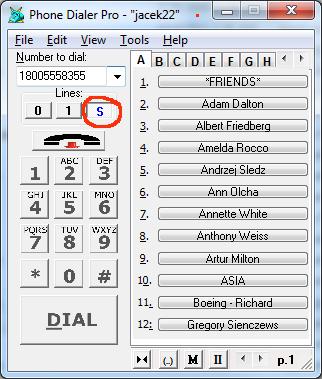
To make Skype call or receive one the Skype line
must be active > line button "S" must stay in the pressed in state.
To make a call to another computer it is just enough to use Skype name
instead of regular phone number.
When using regular phone numbers
Pro dialer will automatically format a phone number when 'Use Dialing
Properties' option is selected in Options>Dialing tab and
Dialing Properties are correctly set: Location, Local Area Code and
Local Area Code Rules.
How to set Local Area Code Rules see this:
How to set
dialer to dial or not to dial "1" for numbers from the
specified area codes?
and this:
Why dialer
does not dial the local area code?
To start Skype conference call use prefix confcall: followed by phone
numbers (or Skype names) separated by a comma,
Example: confcall: 5552340553,phonedialerpro,5551234567
To start Skype video:
Method 1:
click on grey camera icon located on Call Progress (oval) window.
to turn camera off click on green camera icon.
Note, that camera icon will be accessible only when Skype call is
connected.
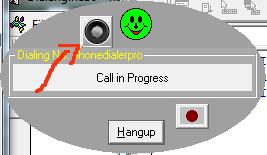
camera is turned off
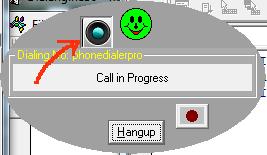
camera is active
Method 2:
use prefix: v_ followed by the phone number.
Example1: v_phonedialerpro Example2:
v_5552340553
Note:
The recent Skype update removes Skype Extras (Skype4COM.dll).
Read below how to re-install it.
Error messages:
The dialers PRO old versions used Skype Extras to connect to Skype.
The current updates do that differently.
Please just update your dialer's software.
Skype requires user permission for the external program to use Skype.
To authorize the program:
"Click on Skype > Tools > Options > Advanced and at the bottom click on
'Manage other programs' access to Skype'"
and set your permission.
"Invalid phone number" or
Skype Error 80020009
- phone number does not conform to Skype format.
Pro dialer will automatically format a phone number when 'Use Dialing
Properties' option is selected in Options>Dialing tab and
Dialing Properties are correctly set: Location, Local Area Code and
Local Area Code Rules.
How to set Local Area Code Rules see this:
How to set
dialer to dial or not to dial "1" for numbers from the
specified area codes?
and this:
Why dialer
does not dial the local area code?
- it is a bug in the Skype client version 5.1.0.104
Update your dialer's software:
Phone Dialer Pro click --->
here
Excel Dialer Pro
click --->
here
Auto Dialer Pro click --->
here
Dial Engine Pro click --->
here
back to the top
There are several methods you can use this software
as a VoIP dialer.
- just connect your PC modem to the adapter's phone jack (RJ 45), use a Y
splitter to connect more devices
In the Options>Hardware tab select SKYPE from the pull-down list of
available lines/devices (Figure 1).
When using Auto Dialer Pro you can select 'Play selected wave
file...' option (Figure 2) and when using Auto Dialer Pro or Excel
Dialer Pro you can select 'Auto Record Outgoing calls' option (Figure 3).
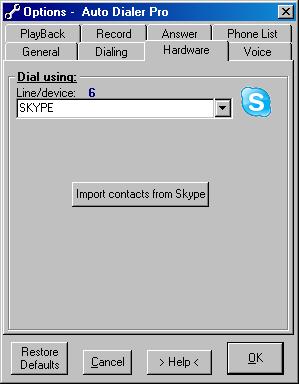
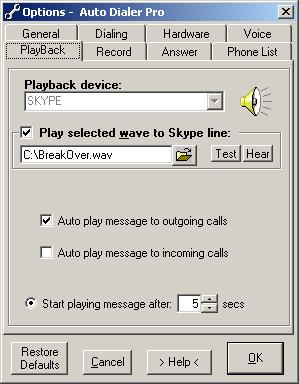
Figure 1
Figure 2
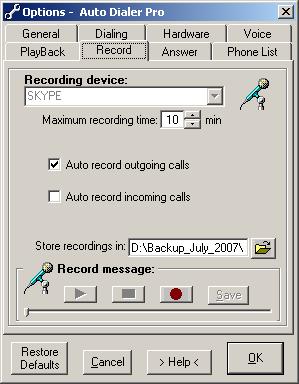
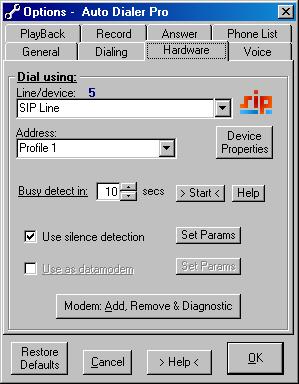
Figure 3
Figure 4
There are 3rd party software plugins which work as a software interface,
employing Session Initiation Protocol (SIP).
You need to install that plugin, then in the Options>Hardware tab
select it from the pull-down list of available lines/devices and set its properties according to the specs
which come with that plugin. (Figure 4)
There are several SIP products available on Internet, such as:
-
TERASIP TSP ---> A single-line version is free for personal use.
-
Comisdn
SIP ---> Communication Server
-
SipTapi
---> TAPI driver for SIP. With this TAPI driver you have a
click2dial feature with any TAPI enabled application (e.g. MS Outlook) and
any SIP account (e.g. freeworlddialup or iptel.org).
download SipTapi
If you have any problems using these plugins you need to contact
appropriate technical support., but please feel free to email me your
comments and/or recommendations. back to the top
There are few error messages, which may
indicate the bad modem or corrupted modem's driver:
In Windows>Control Panel click on 'Phone and Modem Options', select
Modems tab, highlight your modem in the list and click on 'Remove'
button.
Restart Windows.
If the modem is of the popular type, Windows will find it and
automatically install it, if not, you need to use modem's installation
disk, which came with the modem.
Check the make and model number of your device and search Internet
for the new driver.
The good practice is to start searching on manufacturer's web site under
Support label.
The other good place is
http://www.driverguide.com/
Dialer can be controlled by using the following 3 methods:
* from the command line prompt: see
How to use
Excel Dialer
Pro from the command line?
*
Simple
VB code sample how to invoke dialer and make a phone call.
* Windows text messaging by using
SendMessage() API
Note:
1.
For the list of available commands see:
http://www.phonedialerpro.com/faq_pdp.htm#command_line
2.
When using SendMessage() API: LRESULT SendMessage(
HWND hWnd,
UINT Msg,
WPARAM wParam,
LPARAM lParam
);
retrieve and use the
value stored in Windows registry:
HKEY_CURRENT_USER\Software\Jacek Kozlowski\<Application Title>\hkey
Msg
use WM_COPYDATA
wParam
0
lParam
structure
containing information to be send
.lpData
should contain command
.dwData = 1 use
only with commands: "", "min", "setup", "outlog" and "exit"
.dwData = 2 use
only with "script_out" and "script_in" command
.dwData = 3 use
with all other commands
back to the top
| © 1999- Phone Dialer Pro | - Home - | - Contact Us - | - Advertisers - | - Support - | - Site Map - |
Copyright © 1999-
. All rights reserved.
Last revised:
March 28, 2016